Checklist
-
Is our website easy to navigate?
Can people find what they need on our website?
When users can’t find information, they leave or call. This checklist helps you review menus, labels, and structure so people can find what they need faster.
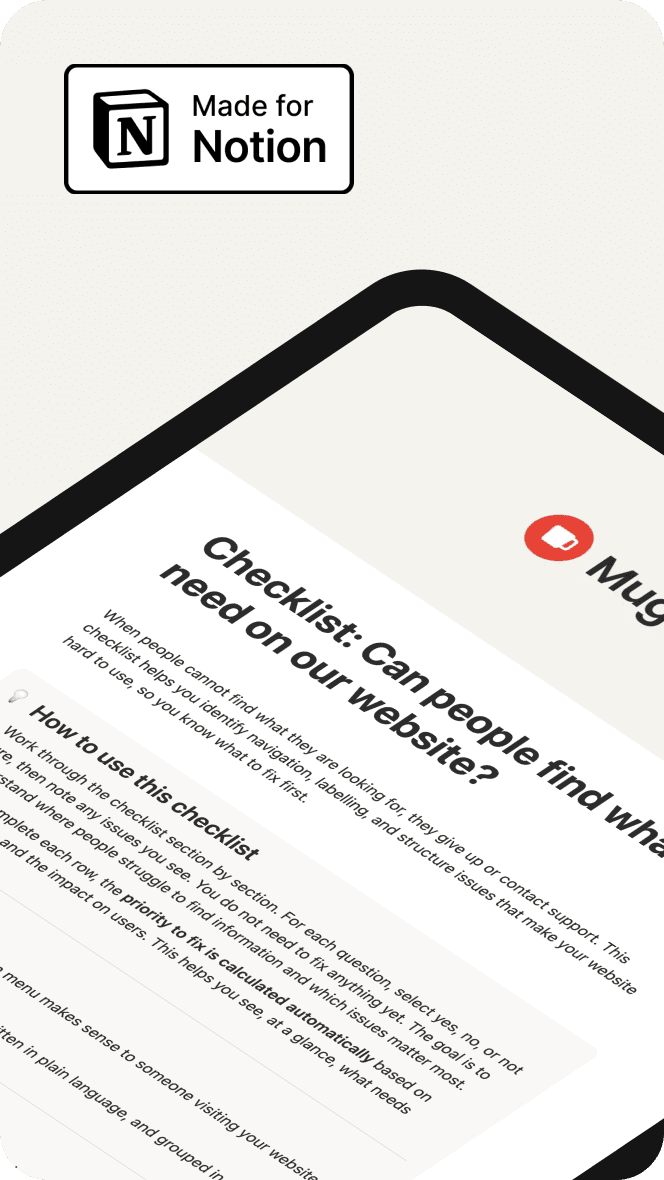
Can people find what they need on our website?
People visit websites to get something done. They want to find information, complete a task, or understand next steps. Most do not explore. They scan, click quickly, and expect things to be where they make sense.
When a website is easy to navigate, people move through it with confidence. When it is not, they hesitate, backtrack, rely on search, or give up altogether. This is rarely due to missing information. More often, it is because the structure, labels, or layout do not match how people think.
Many organisations assume their website is easy to use because it feels familiar to the team that manages it. Over time, menus grow, pages are added, and labels reflect internal language rather than user needs. What started as a simple structure slowly becomes harder to understand.
This checklist helps teams step back and view their website through fresh eyes. It focuses on findability. That is, whether someone can quickly work out where to go, what each option means, and whether they are on the right path.
It does not require technical knowledge or design skills. It is a practical review you can do with what you already have.
This checklist is especially useful if:
People contact you instead of using the website.
Users say they “can’t find anything”
Search is heavily used, even for basic information.
Content feels duplicated or scattered.
The site has grown over many years without a clear structure review
The goal is not to redesign everything. The goal is to understand where people are getting lost and what needs attention first.
Problem
The most common website problem is not missing content. The content is hard to find.
When people cannot quickly understand a website’s structure, several things happen:
They guess where to click
They rely on search instead of navigation
They open multiple pages to compare information
They abandon tasks partway through
They call or email for help
These behaviours indicate that the website is not supporting users effectively.
Why this happens
Findability issues usually come from a few recurring causes.
Navigation reflects internal structure
Menus are often organised around teams, departments, or systems. Users do not think this way. They look for tasks, topics, or outcomes.
Labels are vague or familiar only to staff
Terms that make sense internally can be unclear to the public. Words like services, resources, or programs often hide what is actually inside.
Too many options at once
Long menus and crowded pages make scanning difficult. When everything feels important, nothing stands out.
Inconsistent naming
The same thing is called different names in different places. This creates doubt and slows people down.
Pages do not confirm where you are
Unclear page titles and headings make users wonder if they clicked the right link.
Search becomes a crutch
When navigation is unclear, users rely on search. If search results are poor, frustration increases quickly.
The impact on users
Even small findability issues can have a big effect:
Tasks take longer than expected.
Users feel unsure and lose confidence.
Mistakes increase
Accessibility barriers appear
Support teams receive more calls
Over time, this erodes trust in the website as a reliable platform for getting things done.
The challenge for many teams is knowing where to start. Without a clear way to review findability, issues feel subjective and hard to prioritise.
Solution
This checklist provides a structured way to review whether people can find what they are looking for on your website and to identify what to fix first.
It breaks findability into clear sections, each with a specific goal. Instead of asking “Is our website good?” it asks focused questions about menus, labels, structure, and recovery paths.
How the checklist helps
The checklist helps by:
Turning a vague problem into clear questions
Highlighting where users are most likely to struggle
Separating high-impact issues from minor ones
Removing guesswork about what to prioritise
Creating a shared view across teams
Each question is answered with yes, no, or not sure. You also record the impact on users. From this, the priority to fix is calculated automatically.
This means you do not have to debate what matters most. The checklist shows it.
What the checklist covers
The checklist is organised into six sections.
1. Main navigation
This section checks whether the main menu makes sense to someone visiting the site for the first time.
It helps you assess:
Whether labels are clear and plain
Whether options match what users look for
Whether there are too many choices
2. Sub-navigation and menus
This section looks at dropdowns and secondary menus.
It helps you identify:
Overwhelming lists
Unclear relationships between items
Missing cues about where users are
3. Page titles and headings
This section focuses on confirmation and clarity.
It helps you check:
Whether page titles explain the page
Whether headings support scanning
Whether users can tell they are in the right place
4. Links and calls to action
This section reviews how users move forward.
It helps you spot:
Vague or generic link text
Inconsistent wording
Competing actions on the same page
5. Search and recovery
This section supports users who do not follow the main path.
It helps you understand:
Whether the search is visible and useful
Whether common terms work
Whether users can recover from wrong turns
6. Content grouping and structure
This section checks the overall organisation.
It helps you identify:
Related content that is split apart
Important pages are buried too deeply
Structures based on internal logic rather than user needs
Automatic prioritisation
One of the most useful features of this checklist is that the priority for fixing is calculated automatically.
Based on your answers:
High-impact problems are flagged clearly.
Medium issues are easy to spot.
Low-impact items do not distract attention.
Uncertain areas are marked for review.
This allows teams to focus on what will make the biggest difference first, without requiring deep UX expertise or lengthy workshops.
What to do after completing the checklist
Once the checklist is complete:
Review all high-priority items first.
Look for patterns across sections.
Identify a small number of pages or menus to tackle
Start with simple changes, such as renaming labels or regrouping content
You do not need to fix everything at once. Even small improvements to findability can reduce frustration and support requests.
Who this checklist is for
This checklist is designed for teams that manage websites but do not have a dedicated UX role.
It is especially useful for:
Communications and digital teams
Content editors and administrators
Project officers and service managers
Teams preparing for a website refresh
Organisations receiving frequent user complaints.
It serves as a starting point, a health check, or a basis for building a case for further improvements.
In summary
If people cannot find what they need, the website is not doing its job. This checklist gives you a clear, practical way to see where your website is getting in the way and what to do about it.
By focusing on findability and prioritising issues automatically, it helps teams move from guesswork to confident, evidence-based decisions.
File type:
Notion Template
Other resources you may find useful
Browse more free resources designed to help you fix common website issues, reduce confusion, and make your digital services clearer for everyone.